
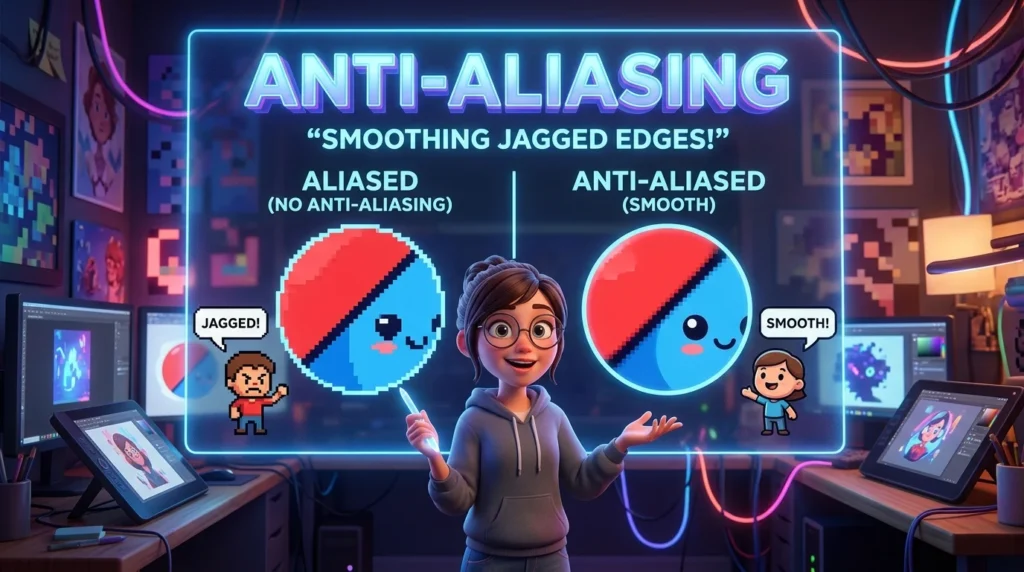
What Does Anti-Aliasing Mean in Graphics?
Anti-aliasing is a computer graphics technique that reduces the visible jagged edges that occur when smooth shapes are represented using a grid of pixels.
A digital screen consists of tiny picture elements called pixels. Because these pixels form a rectangular grid, diagonal lines and curved shapes cannot always be represented perfectly. Without anti-aliasing, their edges may look like a staircase instead of a smooth line.
Anti-aliasing improves the appearance of these edges by adjusting the colors or brightness of pixels near the boundary of an object. This creates a smoother transition between the object and its background.
| Feature | Explanation |
|---|---|
| Full term | Anti-aliasing |
| Main purpose | Reduce jagged edges in digital graphics |
| Common problem addressed | Aliasing, including stair-step edges |
| How it works | Smooths visual transitions around object boundaries |
| Common applications | Video games, 3D rendering, digital art, animation, and UI design |
| Main trade-off | Some methods require additional processing power |
For example, imagine a thin black diagonal line displayed on a white background. Without anti-aliasing, the line may appear as a series of square steps. With anti-aliasing, pixels along its edges receive intermediate shades of gray, making the line appear smoother.
Anti-aliasing does not necessarily increase the screen’s resolution. Instead, it improves how shapes are represented within the available pixels.
What Is Aliasing in Computer Graphics?
To understand anti-aliasing, it helps to understand the problem it solves.
Aliasing occurs when a digital image cannot accurately represent the details or changes in a visual signal. In computer graphics, this often appears when an object’s edges or fine patterns interact with the limited resolution of a pixel grid.
Jagged or Stair-Step Edges
The most familiar example is a diagonal line that looks like a staircase. Horizontal and vertical lines align well with the pixel grid, but diagonal lines cross pixels at different positions, creating an uneven outline.
Flickering in Motion
In video games and animation, thin objects or distant details may flicker as the camera moves. This happens when small visual features change how they map to the pixel grid from one frame to the next.
Moiré Patterns
Repeated patterns, such as tightly spaced lines on a fence or fabric, can create unwanted wavy or striped patterns when rendered at insufficient resolution. This is another form of aliasing.
Loss of Fine Detail
Small objects, narrow lines, and distant textures may appear uneven or disappear when there are not enough pixels to represent them accurately.
Anti-aliasing techniques help reduce these effects, although different methods are better suited to different problems.
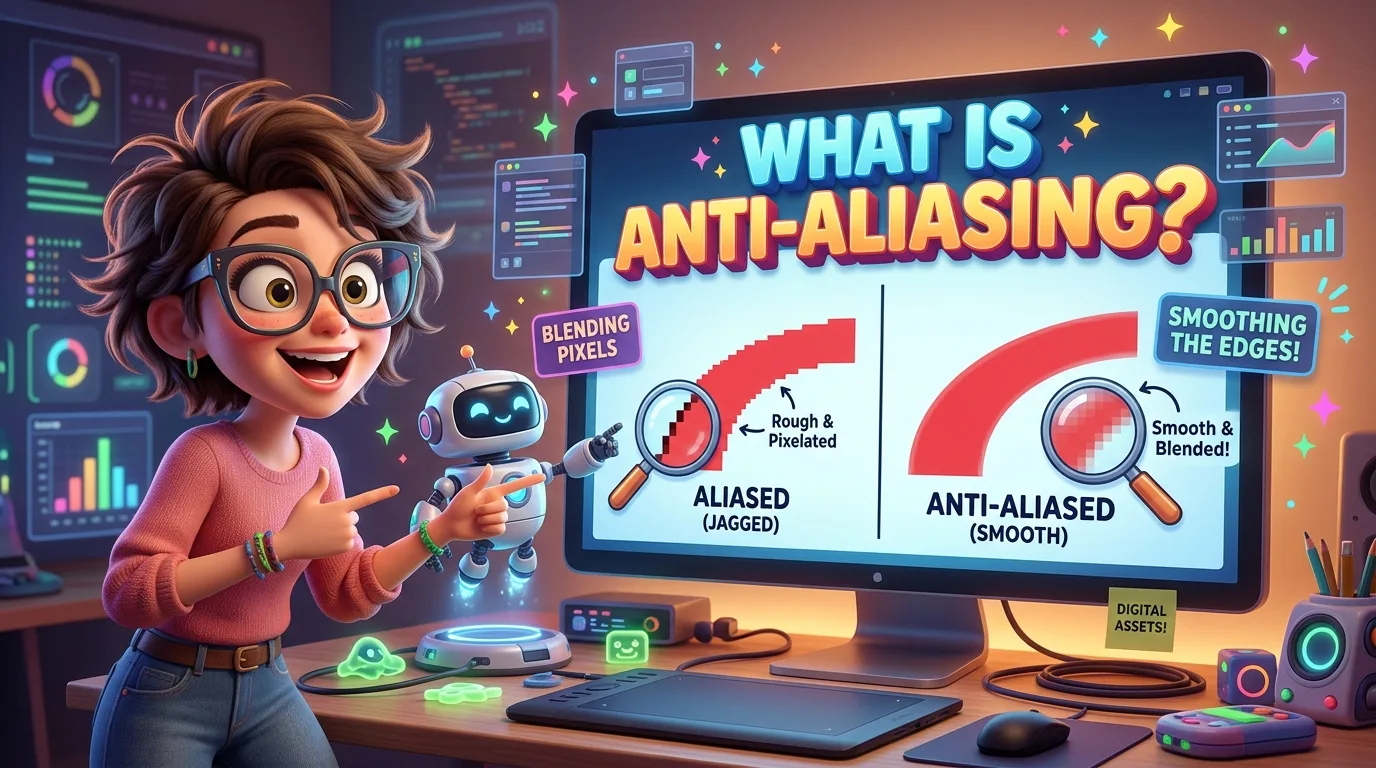
How Does Anti-Aliasing Work?
Anti-aliasing works by improving the way pixels represent the boundary between an object and its surroundings.
1. Detecting Edges
A graphics system identifies or estimates areas where an object’s appearance changes sharply, such as the outline of a character, a diagonal road marking, or the edge of a building.
2. Adjusting Boundary Pixels
Instead of representing every edge pixel as entirely part of the object or entirely part of the background, many anti-aliasing methods use intermediate colors or coverage values.
For instance, a pixel partly covered by a black line on a white background may be displayed in gray. This makes the boundary appear less abrupt.
3. Combining Visual Information
Some techniques render the image at a higher resolution and combine neighboring samples. Others analyze the finished image and smooth detected edges afterward.
The exact process depends on the anti-aliasing method and the graphics hardware or software being used.
4. Producing a Smoother Image
The final result is an image with fewer visible stair-step edges. Fine outlines can look more natural, and moving objects may exhibit less distracting edge shimmer when the technique is suitable for the scene.
Important: Anti-aliasing does not create unlimited detail or automatically make every part of an image sharper. It primarily reduces artifacts caused by representing continuous shapes on a discrete pixel grid.
Types of Anti-Aliasing in Graphics
Several anti-aliasing techniques are used in computer graphics. They differ in how they smooth edges, how much processing they require, and how well they preserve fine details.
1. MSAA (Multisample Anti-Aliasing)
MSAA is a common technique in real-time 3D graphics, particularly video games.
It takes multiple coverage samples for a pixel to determine how much of that pixel is covered by a polygon. The resulting information helps smooth geometric edges.
Advantages:
Effective at smoothing the edges of polygonal objects.
Often preserves interior texture detail better than broad post-processing filters.
Can produce clean-looking geometry in supported rendering pipelines.
Disadvantages:
Requires additional memory and processing resources.
May not smooth shader-generated details or transparent textures as effectively as geometric edges.
Performance and effectiveness depend on the game and graphics hardware.
MSAA is particularly useful when jagged edges around buildings, characters, vehicles, and other 3D objects are distracting.
2. FXAA (Fast Approximate Anti-Aliasing)
FXAA is a post-processing technique that analyzes the completed image and smooths edges that appear jagged.
Because it does not need to take multiple geometric samples during rendering, it is generally relatively inexpensive.
Advantages:
Low performance cost in many situations.
Works with a broad range of rendered scenes.
Often suitable for lower-powered hardware.
Disadvantages:
Can make some textures and small details look soft.
May not remove every form of temporal shimmering.
Results depend on the image and implementation.
FXAA is often a practical option when performance matters more than perfectly crisp detail.
3. TAA (Temporal Anti-Aliasing)
TAA uses information from multiple frames to reduce aliasing. A rendering system combines current-frame information with appropriately reprojected information from previous frames.
It can help smooth both object edges and fine details that shimmer during movement.
Advantages:
Can reduce flickering and shimmering in motion.
Works well for many complex 3D scenes.
Can improve the stability of fine visual details.
Disadvantages:
May introduce ghosting or trailing artifacts when objects move.
Can make the image look soft, depending on the implementation.
Depends on motion information and the quality of the temporal reconstruction.
TAA is common in modern games because it can address problems that a single-frame edge filter may miss.
4. SSAA (Supersampling Anti-Aliasing)
SSAA renders the scene at a resolution higher than the final display resolution and then downsamples it to the target size.
For example, a game displayed at 1920 × 1080 might render at a higher resolution before reducing the result to 1920 × 1080.
Advantages:
Can improve edge smoothness and the appearance of fine details.
Can reduce several types of spatial aliasing.
Often produces a clean result when enough samples are used.
Disadvantages:
Can require substantial GPU resources.
May reduce frame rates considerably.
Is often too expensive for demanding real-time games at high settings.
SSAA can provide excellent visual quality, but it is generally more demanding than lighter methods.
5. SMAA (Subpixel Morphological Anti-Aliasing)
SMAA is an image-based technique designed to identify and smooth jagged edges while preserving more detail than some simpler filters.
Implementations vary, and some versions can incorporate additional information to improve temporal stability.
Advantages:
Can provide a useful balance between smooth edges and image clarity.
Often preserves details relatively well.
May have a modest performance cost compared with more demanding methods.
Disadvantages:
Results depend on the particular implementation.
May not eliminate all motion-related shimmering.
Can be less effective than temporal methods for some fine moving details.
SMAA is a useful option when a player wants smoother edges without as much softness as a basic post-processing filter may produce.
Anti-Aliasing Comparison: Which Type Is Best?
There is no single best anti-aliasing method for every situation. The right choice depends on the game, hardware, display resolution, and personal preference.
| Method | Main approach | Typical performance cost | Common trade-off |
|---|---|---|---|
| FXAA | Smooths edges in the finished image | Low | May soften the image |
| MSAA | Samples polygon coverage | Moderate to high, depending on settings | Does not address every shader or transparency artifact |
| TAA | Combines information across frames | Varies by implementation | Can cause ghosting or softness |
| SSAA | Renders above target resolution | High | Can significantly reduce frame rate |
| SMAA | Detects and smooths image edges | Often low to moderate | May leave some temporal shimmer |
These are general tendencies, not guaranteed performance rankings. The actual result depends on the graphics engine, resolution, hardware, and implementation.
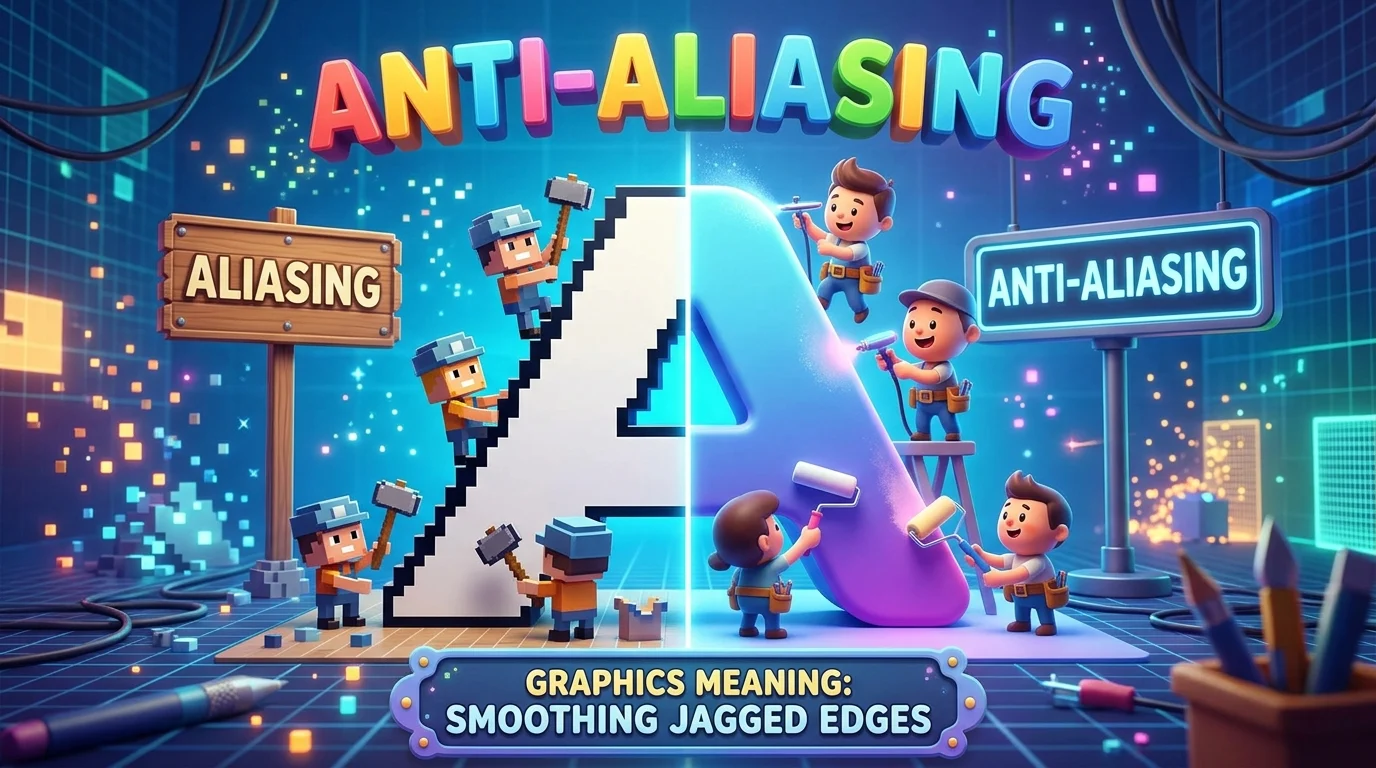
What Does Anti-Aliasing Mean in Gaming?
In video games, anti-aliasing controls help make object edges look smoother and reduce distracting visual artifacts.
Without anti-aliasing, the outlines of characters, trees, weapons, fences, buildings, and distant objects may appear jagged. This can be especially noticeable when playing at a lower resolution or looking at thin diagonal shapes.
Does Anti-Aliasing Improve Graphics Quality?
Yes, it can improve perceived image quality by making edges look smoother and reducing certain forms of flickering and visual distortion. However, it does not necessarily improve texture resolution, lighting, shadows, or every other part of the graphics.
Does Anti-Aliasing Lower FPS?
It can. Some techniques require extra samples or additional processing, which may reduce frames per second (FPS). Lightweight methods often have a smaller performance cost, while supersampling can be demanding.
The effect varies widely between games and graphics cards.
Should You Turn Anti-Aliasing On or Off?
Turn it on if jagged edges are distracting and your system maintains a comfortable frame rate.
Choose a lighter method if you want smoother edges without a large performance impact.
Reduce demanding settings if anti-aliasing causes noticeable frame-rate drops.
Compare the image yourself because some methods look sharper or smoother depending on the game and monitor.
For competitive games, a player may prefer a sharper image and higher frame rate. For cinematic or single-player games, smoother edges may be worth a modest performance cost.
Anti-Aliasing at Different Resolutions
Display resolution affects how noticeable aliasing becomes, but it does not eliminate the problem entirely.
Anti-Aliasing at 1080p
At 1920 × 1080, jagged edges can be easy to notice, especially on thin lines and distant objects. Anti-aliasing can make the image appear smoother without requiring a higher-resolution monitor.
Anti-Aliasing at 1440p
A 2560 × 1440 display provides more pixels than 1080p, which often makes edges look smoother even before anti-aliasing is applied. However, fine patterns and moving details can still produce aliasing.
Anti-Aliasing at 4K
A 3840 × 2160 display has substantially more pixels than a 1080p display. This can reduce the visibility of jagged edges, but anti-aliasing may still improve thin geometry, distant objects, and temporal stability.
Does Higher Resolution Replace Anti-Aliasing?
Not completely. Higher resolution can reduce aliasing, but the pixel grid still limits how accurately certain shapes and patterns are represented. Anti-aliasing and resolution can complement each other.
Anti-Aliasing in Digital Art and Image Editing
Anti-aliasing is not limited to gaming or 3D graphics. It is also important in digital illustration, typography, animation, and interface design.
Digital Drawing
Drawing applications use anti-aliasing to create smooth brush strokes, curved lines, and outlines. Without it, diagonal strokes may look rough or pixelated.
Text and Typography
Text rendering often uses techniques that improve the appearance of letter edges on screens. Anti-aliasing can make small text easier to view by smoothing the transitions between letters and the background, although results depend on the display and rendering method.
Vector Graphics
Vector shapes are defined mathematically rather than as a fixed grid of pixels. When displayed on a screen, they must still be rasterized into pixels. Anti-aliasing helps their curves and diagonal edges appear smooth.
Animation and Rendering
Animated scenes and computer-generated imagery can use anti-aliasing to reduce jagged outlines and other sampling artifacts. Temporal methods are particularly relevant when objects or cameras move between frames.
Advantages and Disadvantages of Anti-Aliasing
Anti-aliasing can improve visual presentation, but it involves trade-offs.
Advantages
Smoother edges: Reduces the staircase appearance of diagonal lines and curves.
More polished visuals: Helps rendered objects look less pixelated.
Improved stability: Some techniques reduce shimmering and flickering in motion.
Better presentation of fine shapes: Can improve the appearance of small geometric features.
Broad usefulness: Applies to games, animation, illustration, typography, and 3D rendering.
Disadvantages
Performance costs: Some methods require additional rendering work.
Image softness: Certain techniques can blur fine details.
Ghosting: Temporal methods may leave trails behind moving objects.
Incomplete correction: No single method eliminates every type of aliasing in every scene.
Implementation differences: The same technique can produce different results across games and software.
The most suitable choice depends on whether the priority is image clarity, smooth motion, performance, or a balance among all three.
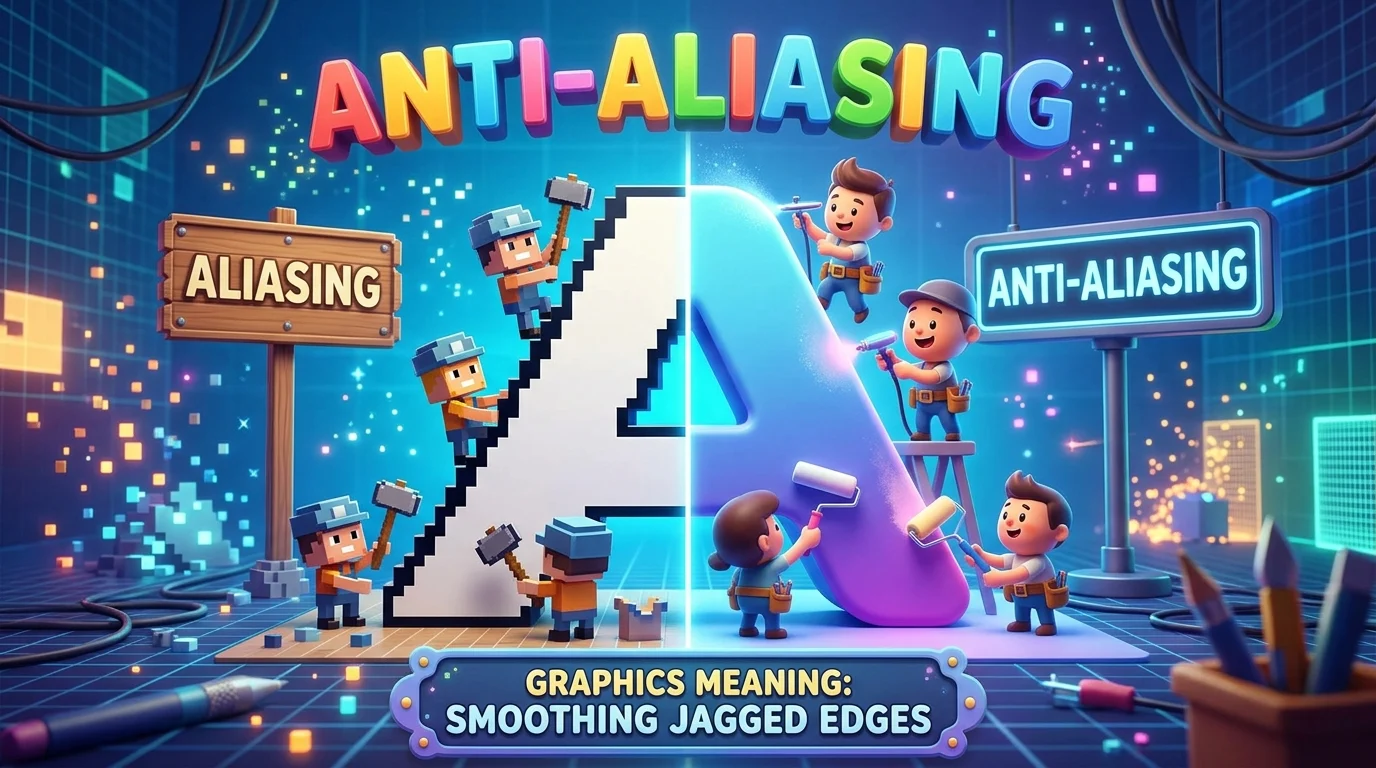
How to Choose Anti-Aliasing Settings
If a game or graphics application offers multiple anti-aliasing options, use these guidelines as a starting point.
Identify the visual problem. Jagged polygon edges, shimmering textures, and soft images may require different solutions.
Start with a moderate setting. Avoid immediately choosing the most demanding option.
Compare still images and motion. Some methods look good in screenshots but behave differently when the camera moves.
Monitor performance. Check whether the setting causes frame-rate drops or uneven frame pacing.
Adjust according to your priorities. Choose sharper rendering for competitive play or a smoother presentation for visually focused experiences.
If the game offers only one anti-aliasing setting, test it on and off in a scene with thin lines, fences, foliage, and diagonal edges. This makes differences easier to see.